Posts

Module 3: Terrain Visualization

Image
In this week's lab, I experimented with different methods to visualize terrain, with emphasis on contours and hillshading of DEMs. I used hillshade to support the visualization of landcover in Yellowstone National Park. For this map, I created a multidirectional hillshade from a DEM of the area. Multidirectional hillshade uses multiple imaginary light sources for all sides of the map so that all the terrain receives sufficient shading. This type of hillshade shows relative relief better on a map. For the land cover types, I combined types that were the same, e.g. three types of Douglas Fir,  several types of Lodgepole Pine, and several types of Whitebark Pine, respectively. I created a custom symbology for the land cover types to create visual contrast so that each type could be clearly seen and distinguished on the map. I placed the hillshade under the landcover layer and changed the transparency of the landcover to 50% so that the terrain could be visualized. The rest of the req...

Module 2: Coordinate Systems

Image
In this week's lab I explore different coordinate systems and projections in order to better understand the nature of distortions introduced by the systems. For the last part of the lab, I was tasked with selecting a state in the contiguous US and selecting an appropriate projection for the area. I selected the state of Wyoming as my area of interest. Wyoming has 4 State Plane zones and two UTM zones, so neither a single State Plane nor UTM system would work for this area without distorting the size or shape of the state. Therefore, the best coordinate system for this area is Custom Coordinate system. I chose NAD 1983 WyLam (Meters), a custom system specifically for the state of Wyoming, as the projected coordinate system. This coordinate system is a Lambert secant-case normal-aspect conic type projection which preserves shape and is appropriate for a general reference map. The standard parallels are placed at 41N and 45N, the boundaries of the state of Wyoming, which minimizes...

Module 1: Map Design & Typography

Image
For this week's lab, I explore symbology and typography to create effective maps. Creating effective maps means applying the 5 map design principles to improve map products. The 5 map design principles are visual contrast, legibility, figure-ground orientation, hierarchical organization and balance. For this lab, I created 5 maps, exploring different tools in applying the map principles.  One of those maps I created is below. This is a map of some recreation sites in the City of Austin designed for a general audience with an interest in tourism to be published in a brochure or small poster.  Map of recreation sites for the City of Austin. I applied the 5 map design principles in this map so that they were complementary and resulted in a simple, easy to read basic map of recreation sites in and around the City of Austin. Below, I describe how I addressed each principle in the map. Visual Contrast: This is how map features and elements contrast with each other...

Internship Portfolio

Image
For the last deliverable of my GIS Internship, I created an official digital Professional GIS Portfolio. I have basic experience developing a website using Word Press and know it can become complicated quickly, so I opted to use Wix because it is a free design host site and the interface is easier to use. For my portfolio, I used many maps created for courses for the Graduate GIS Certificate. I am grateful for the course requirements that required blog posts because this made finding student work examples much easier. It was much more difficult to find examples from my current work position as they are organized into many project folders.  As I was reviewing my work over the past year, I was delighted to see how my final products have improved over time. In addition, it was enlightening to review past course assignments and other work projects, many of which I forgot I completed. Overall, I'm happy with my portfolio and intend to continue to add to it while completing t...

Module 5: Unsupervised & Supervised Classification

Image
In this week's lab, I classified satellite imagery using unsupervised and supervised classification methods in ERDAS Imagine. For the supervised classification, I created spectral signatures for 8 classes in Germantown, Maryland using the Region Growing Properties tool, Polygon tool, and the Signature Editor tool. After creating several Areas of Interests (AOIs) for each class, I examined the histograms and mean plots of all the signatures for spectral confusion. Based on the histograms and plots, I concluded that bands 4, 5, and 6 were the most separate and least confused of all the signatures. I used these bands for the supervised classification using Maximum Likelihood. I recoded the supervised image to merge the AOIs into 8 classes and calculated the area in acres for each of the classes. Below is the final result of supervised classification.  Fig 1. Land use map from supervised classification of Germantown, Maryland.

Module 4: Spatial Enhancement, Multispectral Data, and Band Indices

Image
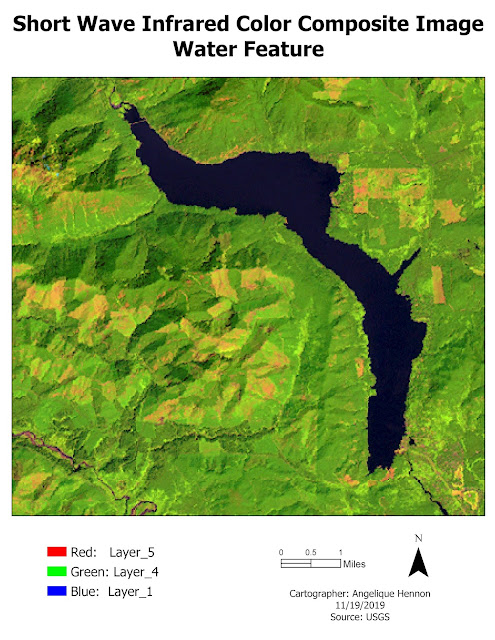
The deliverables for this lab included identifying three features from pixel descriptions on an image in ERDAS Imagine. Grayscale and Multispectral versions of the image were examined using layer histograms and the Inquire Cursor. Once the feature was identified, the Create Subset tool was used to create an image of the area to import into ArcGIS Pro to create the maps. A different multispectral band combination was used for each feature mapped to make that feature stand out. The maps below show each of the features identified in the lab. The water features in the image produced a spike between pixel values of 12 to 18 in Layer_4. To make the feature stand out and identifiable as blue water, Short Wave Infrared Color Composite band combination was selected where dark blue is water, green is vegetation and pink is bare soil. The snow in the image produced both a small spike around pixel value 200 in Layers 1-4 and a large spike between pixel values 9 and 11 in Layers 5-6. To m...

Module 3: Intoduction to ERDAS Imagine and Digital Data

Image
In this week's lab, I learned basic tools and functions for exploring imagery in ERDAS Imagine. ERDAS Imagine is pretty similar to ArcGIS Pro in terms of the way the system is setup for navigating and exploring layers, so learning to use the new software was fairly easy. I used ERDAS Imagine to select an area from a classified image of some forested lands in Washington State. Before saving the file, I added a new column with the area in hectares of each cover type in the image. Adding the area column was easier and took fewer steps in ERDAS Imagine than it would have in ArcGIS Pro. I saved the selected area as an .img file and then opened it in ArcGIS Pro to create a map with a legend, including the area of each cover type calculated in ERDAS Imagine. Fig 1. Map of forested land cover types in Washington State derived from a classified image in ERDAS Imagine.